Your First Dashboard
You’ve completed the Quick Start and events are flowing in. Let’s walk through what you’re seeing in the dashboard and how to make sense of it.
The Sidebar
Section titled “The Sidebar”The dashboard is organized into five sections:
| Section | What it does |
|---|---|
| Analytics | Understand player behavior — event charts, retention, funnels, heatmaps |
| Live Ops | Change your game without an update — remote config, balancing, A/B tests |
| Monetization | Track revenue — purchases, ARPPU, top products, subscriptions |
| Players | Manage players — search, segments, achievements, leaderboards, cloud saves |
| Configuration | Setup & debugging — API keys, alerts, remote logs |
The Overview Page
Section titled “The Overview Page”When you select a game, you land on the Overview page. Here’s what you see:
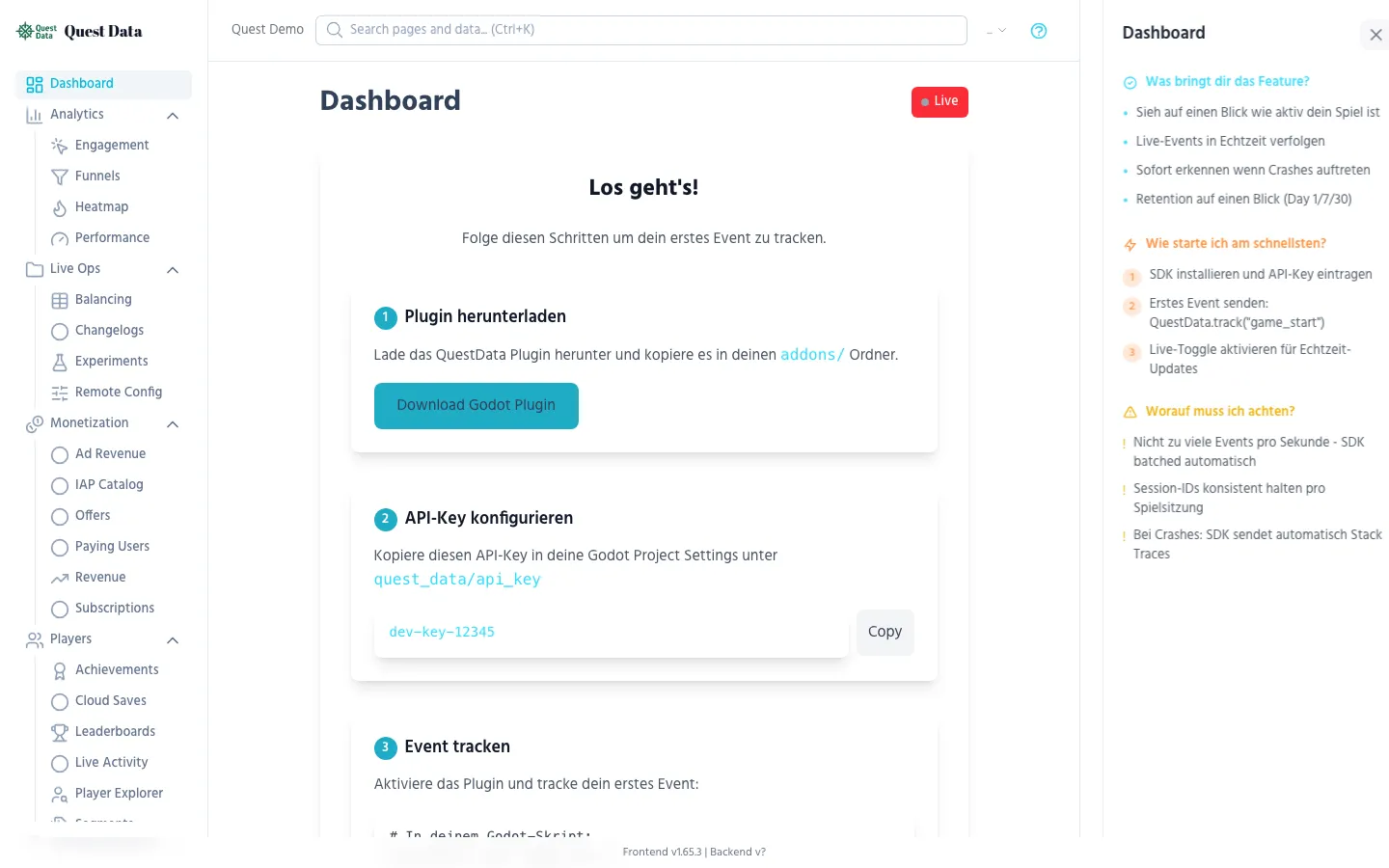
Event Chart
Section titled “Event Chart”The line chart shows events per minute over time. Use the time range selector to zoom in on specific periods. This is your pulse check — if the line drops to zero, something is wrong.
Live Feed
Section titled “Live Feed”The table below the chart shows the most recent events in real-time. Each row shows:
- Event name (e.g.
game_start,level_complete) - Player ID — who triggered it
- Properties — the data you attached (level, score, platform)
- Timestamp — when it happened
Toggle Live in the top-right to see events appear as they happen (via WebSocket).
Key Metrics
Section titled “Key Metrics”The KPI cards show your headline numbers:
- DAU — Daily Active Users (unique players today)
- Sessions — How many game sessions started today
- Events — Total events received today
- Avg Session Duration — How long players stay per session
What Do I Do With This?
Section titled “What Do I Do With This?”It depends on what you’re building:
“I want to understand my players”
Section titled ““I want to understand my players””Start with the Analytics & Insights Guide — learn how to read retention tables, build funnels, and find where players get stuck.
”I want to make money”
Section titled “”I want to make money””Head to the Monetization Guide — set up purchase tracking, analyze which items sell, and measure ARPPU.
”I want to tune my game live”
Section titled “”I want to tune my game live””Check out the Live Ops Guide — change difficulty, toggle features, and run A/B tests without shipping an update.
”I want to find and fix bugs”
Section titled “”I want to find and fix bugs””Read the Remote Debugging Guide — send logs from your game, track crashes with stack traces, and set up Discord alerts.
”I want to manage players”
Section titled “”I want to manage players””See the Player Management Guide — search players, create segments, add leaderboards and achievements.
Next Steps
Section titled “Next Steps”- Godot Integration Tutorial — Build a complete game integration step by step
- Best Practices — Event naming, performance, GDPR, security
- SDK Reference — Full API documentation for all SDK functions